The Board
The infinite canvas at the heart of taskpapr.
Table of contents
- Canvas
- Tiles
- Tasks
- WIP state
- Today tile (📅)
- Context menu
- Search
- Sync stamp
- Keyboard shortcuts
- Canvas bookmarks (🔖 Views)
Canvas
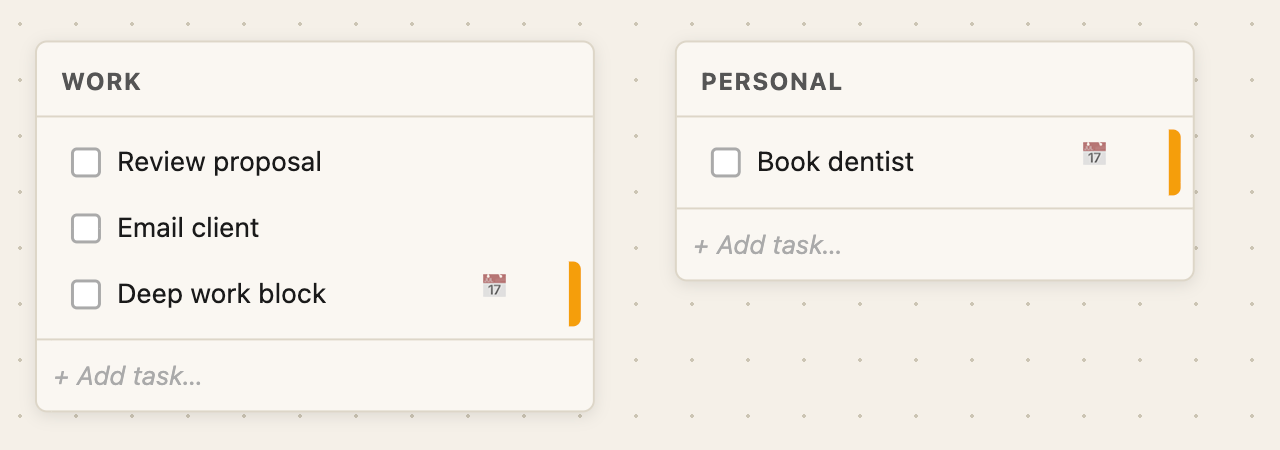
The board is an infinite canvas. There are no pages, no fixed grid, and no forced layout. Tiles sit wherever you put them.
Navigating
| Action | How |
|---|---|
| Pan | Click and drag on empty canvas |
| Zoom in / out | Scroll wheel, or + / - keys |
| Reset zoom to 100% | Home key |
| Zoom indicator | Bottom-left corner; shows current zoom % |
The canvas position and zoom level are saved per-device in localStorage and restored on reload.
Off-screen beacons
When tiles exist outside the visible area, pill-shaped indicators appear at the edges of the viewport — top, bottom, left, right — showing how many tiles are off-screen in that direction. Click a beacon to pan to the nearest off-screen tile in that direction.
Beacons pulse gently and disappear as tiles come into view.
Tiles
Tiles are columns. Each tile holds a list of tasks. Tiles can be freely positioned anywhere on the canvas.
Adding a tile
Click + Add tile in the header.
Renaming a tile
Click the tile header text to edit it inline.
Moving a tile
Drag the tile by its header. On mobile / iPad, press and hold the header for ~400ms to initiate drag.
Resizing a tile
Drag the resize handle in the bottom-right corner of the tile.
Per-tile colour
Click the 🎨 icon on the tile header (visible on hover) to open the palette picker. Choose from 8 colours, or clear back to the default parchment.
Per-tile scale
Shrink or enlarge an individual tile’s content in 0.1× steps. Range: 0.5× – 2.0×. Default: 1.0×.
| Gesture | Effect |
|---|---|
| Scroll wheel on tile header | Shrink (scroll down) or grow (scroll up) |
| Two-finger pinch on tile (mobile) | Pinch to scale; snapped to 0.1× steps |
When a tile is at a non-default scale, a scale badge (e.g. 0.7×) appears in the tile header. Click the badge to reset the tile to 1.0× instantly. The badge is always visible when relevant so it’s immediately obvious why a tile appears large or small.
Scrolling on the tile header adjusts tile scale. Scrolling on the canvas background zooms the whole canvas. The two gestures don’t interfere.
Deleting a tile
Click the ✕ icon on the tile header (visible on hover). This deletes the tile and all its tasks permanently.
Hidden tiles (Someday / Maybe)
Any tile can be hidden from the main board. Hidden tiles are for tasks you want to keep but don’t want cluttering your everyday view — a Someday/Maybe list.
- Hide a tile: Click the 🙈 icon on the tile header (visible on hover)
- Reveal hidden tiles: Click the 🗃 N button in the header (only visible when hidden tiles exist). Hidden tiles are shown with a dashed border and hatched header.
- Unhide a tile: Click the 🙉 icon on the tile header while it’s revealed.
Tasks
Adding a task
Click + Add task at the bottom of any tile, type, and press Enter. The task is added immediately.
Checking off a task
Click the checkbox on the left of the task. The task stays visible with strikethrough — it doesn’t disappear. This is intentional: the visual record of done work is the progress signal.
Checking off a task does not delete it. Use Clear done (see below) when you’re ready to clear a tile.
Inline editing
Double-click a task title to edit it in place.
Task detail panel
Click a task title (single click) to open the detail panel on the right. The panel contains:
- Editable title and notes (auto-saved, debounced)
- Notes render as live Markdown preview
- Due date, recurrence interval, visibility window
- Goal assignment
- Colour picker
- Rot settings (see Recurring Tasks)
- Touched / Created metadata
- Action buttons: Find on board, Park, Touch
Dragging tasks
Drag tasks to reorder within a tile, or drag them to a different tile entirely.
Clearing done tasks
- Per tile: Click the Clear done button on the tile header (visible when done tasks exist). Tasks animate out with a fade-and-collapse effect.
- Global: Click the Clear done button in the main header to clear done tasks across all tiles.
WIP state
Mark a task as Work In Progress to give it a visual teal left stripe and a WIP badge.
UI vignette — WIP stripe
Approximates the teal left stripe and WIP badge on an active task (not a pixel-perfect screenshot).
- Mark WIP: Click the left stripe of any active task, or use the context menu → Mark WIP
- Clear WIP: Click the WIP badge on the task
WIP is a signal, not a filter. WIP tasks remain in place on the board.
Today tile (📅)
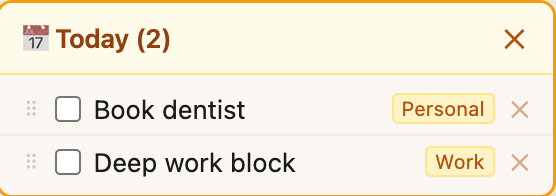
Flag tasks for today and see them in a focused, floating view on the board.
Flagging tasks
Right-click a task → 📅 Add to Today to flag it. A 📅 badge appears on the task card in the main board. Completing a flagged task removes it from the Today tile automatically — done tasks don’t linger.
Opening the Today tile
- Click the 📅 N button in the header (only visible when at least one task is flagged)
- Press D to toggle the tile open or closed
The tile floats in the top-right corner of the viewport. It lists all flagged tasks with the tile they came from, sorted by your manual order then original board position.
Working in the Today tile
- Check off a task — marks it done; removes it from the Today tile
- Unflag a task — click the unflag button to remove it from Today without completing it
- Reorder — drag the ⠿ handle to set the order within the tile
The Today tile is draggable — grab the header to reposition it anywhere on screen.
Context menu
Right-click any task (or click the ⋯ button) to open the context menu:
| Option | What it does |
|---|---|
| Properties | Opens the task detail panel |
| Mark WIP | Sets WIP state |
| Set colour… | Opens the 8-colour palette picker |
| 📅 Add to Today | Flags the task for the Today tile |
| Assign Goal | Links the task to a goal |
| Touch | Resets the rot clock (acknowledges you’ve seen this task) |
| Snooze 24h | Hides the task for 24 hours without changing its due date |
| Park | Moves the task to a hidden tile (creates one if none exists) |
| Delete | Permanently deletes the task |
Search
Press ⌘K (or Ctrl+K) to open the command palette search.
- Searches all tasks, including dormant ones
- Results are score-ranked
- Matching text is highlighted in yellow
- Click a result to open the task detail panel; if the task is dormant, it is auto-revealed in its tile
Click the 🔍 button in the header to open search with the mouse.
Sync stamp
A quiet “synced X ago” label appears in the title bar next to the version badge. It shows when the board data was last fetched — useful when working across multiple devices to confirm you’re looking at the latest state.
- Updates every 30 seconds
- Flashes green briefly when the 60-second background poll detects remote changes
- Hover for the exact timestamp
Keyboard shortcuts
| Shortcut | Action |
|---|---|
⌘K / Ctrl+K |
Open search |
+ |
Zoom in |
- |
Zoom out |
Home |
Reset zoom to 100% |
D |
Toggle Today tile |
G |
Toggle goal smart-tiles |
⌘1 – ⌘9 |
Jump to canvas bookmark by position |
Escape |
Close open panels / dismiss overlays |
Canvas bookmarks (🔖 Views)
Named saved views. A bookmark stores the current canvas position and zoom level so you can jump back to it instantly with a smooth animation.
Useful for maintaining separate “zones” on the canvas — e.g. jump between a Work area and a Personal area with one click.
Saving a bookmark
- Pan and zoom the canvas to the view you want to save
- Click 🔖 Views in the header
- Click Save current view… and give it a name
Bookmarks are stored in the database and sync across devices.
Jumping to a bookmark
- Click 🔖 Views in the header, then click any bookmark in the list
- Or press ⌘1–⌘9 to jump to bookmarks by their position in the list
The canvas animates smoothly to the saved position and zoom level.
Renaming or deleting a bookmark
Click 🔖 Views to open the panel:
- Click the ✎ icon next to a bookmark to rename it
- Click the ✕ icon to delete it