Recurring Tasks
Spinning plates, dormancy, task rot, and snooze — how taskpapr handles time.
Table of contents
- Due dates and recurrence
- Spinning plates
- Dormancy
- Task rot
- Snooze 24h
- How rot and spinning plates differ
Due dates and recurrence
Any task can have an optional due date and an optional recurrence interval. Both are set in the task detail panel (click a task to open it).
Due date — a one-off or next-occurrence date. Shown as a quiet colour-coded label on the task card:
- Amber: due within 3 days
- Red: overdue
Recurrence interval — how often the task repeats:
| Option | Interval |
|---|---|
| Daily | 1 day |
| Weekly | 7 days |
| Every 2 weeks | 14 days |
| Monthly | ~30 days |
| Every 2 months | ~60 days |
| Every 3 months | ~90 days |
When you check off a recurring task:
- Its status resets to
active(not done) next_dueadvances by one intervallast_done_atis recorded- The urgency heat resets
Spinning plates
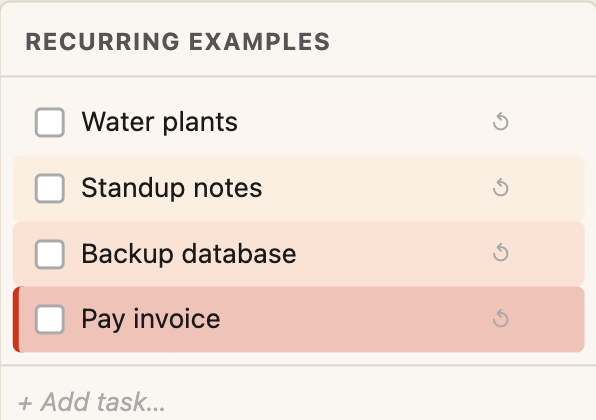
Spinning plates is the visual urgency system for recurring tasks. As the next due date approaches, the task card heats up — amber, then orange, then red. Once overdue it escalates further. Complete the task and the heat resets to nothing.
Think of it like actual spinning plates: the longer you leave one unattended, the more urgent it looks. Complete it and it’s calm again.
How urgency is calculated
Urgency is calculated client-side each time the board renders, using:
ref point     = most recent of (last_done_at, created_at)
urgency ratio = time since ref point ÷ recurrence interval
Using the later of the two means a brand-new recurring task starts building urgency from creation — it doesn’t need to be completed once first before the heat kicks in.
Visual mapping
| Urgency ratio | Appearance |
|---|---|
| 0 – 0.5 | No tint (just completed, all good) |
| 0.5 – 1.0 | Faint amber tint (coming up soon) |
| 1.0 | Due now — orange tint, amber left border |
| 1.0 – 1.5 | Orange → deep red (overdue, escalating) |
| 1.5+ | Maximum red urgency (capped) |
WIP tasks never show urgency heat. If a task is marked WIP, the amber stripe is already signalling active attention — adding heat on top would contradict it.
UI vignette — spinning plates heat
Simplified heat steps for recurring tasks as a due date approaches (actual card tint blends on the real board).
Dormancy
Dormancy lets a recurring task hide itself between completions and only reappear when it’s actually coming up. Useful for tasks that would clutter the board if always visible (e.g. a quarterly task that’s irrelevant for 89 of every 90 days).
Setting a visibility window
In the task detail panel, use the Show task dropdown:
| Option | When the task reappears |
|---|---|
| Always visible | Never hides |
| On the day | Reappears on the due date itself |
| 1 day before due | Reappears 1 day before next_due |
| 3 days before due | Reappears 3 days before next_due |
| 1 week before due | Reappears 7 days before next_due |
When a task is dormant:
- It disappears from the tile
- A 👻 ghost pill appears on the tile header showing how many dormant tasks are sleeping
- Click the ghost pill to peek at them without waking them
- Dormant tasks are still searchable via ⌘K

Tasks wake automatically when their visibility window opens. The server checks dormancy on startup and hourly.
Task rot
Task rot is the visual ageing system for one-off tasks. A task that hasn’t been touched in a while quietly turns the colour of old paper — a gentle prompt that you may have forgotten about it.
How rot is calculated
Each task tracks a last_acknowledged_at timestamp. Rot is calculated client-side:
rot ratio = time elapsed since last touch ÷ rot interval
The rot interval is per-task (default: weekly).
Visual mapping
| Rot ratio | Appearance |
|---|---|
| 0 – 0.5 | No change (fresh) |
| 0.5 | Faint cool grey wash begins |
| 1.0 | Clearly visible grey tint |
| 1.5+ | Warm aged parchment (capped) |
The colour progression — cool grey → warm parchment — deliberately mimics paper ageing rather than alarming red. The board stays calm.
UI vignette — task rot (one-off tasks)
Rot moves from untouched paper toward a warm aged look — visual only, no alerts.
Acknowledging a task (Touch)
To reset the rot clock without actually changing the task:
- Context menu → Touch
- Task detail panel → ✓ Touch button (footer)
Editing a task’s title or notes does not reset the rot clock. Only an explicit Touch action advances it. This means you can annotate a task without accidentally resetting its age signal.
Per-task settings
In the task detail panel, a Remind me if untouched checkbox controls rot per task:
- ☑ Checked — rot is active. A speed selector appears inline: Daily / Weekly / Every 2 weeks / Monthly / Every 3 months.
- ☐ Unchecked — rot is disabled for this task. It will never age regardless of how long it sits.
What rot doesn’t apply to
- Recurring tasks (they have spinning plates instead)
- Tasks with a user-assigned colour (the colour takes precedence visually)
- Done tasks
Snooze 24h
Snooze hides a task for exactly 24 hours without touching its due date or recurrence.
Use it when a task is on your radar but you genuinely can’t act on it right now and don’t want it drawing your eye all day.
How to snooze: Context menu → 💤 Snooze 24h
The task disappears and reappears automatically after 24 hours. Its next_due date is not affected — the snooze is a temporary visual hide only.
How rot and spinning plates differ
| Task rot | Spinning plates | |
|---|---|---|
| For | One-off tasks you might forget about | Recurring tasks on a rhythm |
| Trigger | Time since last human touch | Time since last completion |
| Colour palette | Grey → warm parchment (subtle) | Amber → orange → red (urgent) |
| Resets when | You touch / acknowledge the task | You complete (tick) the task |
| Opt-out | Per task: uncheck “Remind me if untouched” | N/A — only activates on recurring tasks |
| Applies to | Non-recurring active/WIP tasks | Tasks with a recurrence interval set |
Both are purely visual — no notifications, no badges, no noise. The board itself tells you what needs attention.