Goals
Outcomes on the canvas — above the day-to-day noise.
Table of contents
What goals are
A goal in taskpapr is an outcome — something you’re working towards, not a task to be ticked off.
Goals are not projects in the traditional sense. They don’t have subtasks, phases, or timelines. They’re labels that connect ordinary tasks to a larger intention. The goal itself never gets “done” directly — tasks assigned to it do.
Examples:
- “Launch MVP”
- “Get fit”
- “Move to the new house”
- “Close the Series A”
Managing goals
Go to /goals to create, rename, and delete goals.
Access it from: user avatar dropdown → ⊙ Goals
The goals page shows each goal with a task count badge:
- Blue badge — goal has linked tasks
- Grey badge — goal has no tasks yet
Creating a goal: Type a name and submit. Goals can also have optional notes — useful for capturing the “why” behind an outcome.
Deleting a goal: Click delete. Tasks linked to it are not deleted — they simply lose their goal assignment (goal_id is set to null).
Assigning tasks to goals
There are two ways to link a task to a goal:
From the task detail panel: Open a task (single click) → use the Goal dropdown to assign it. You can also create a new goal inline: select + Add new goal…, type the name, and press Enter — the goal is created and assigned without leaving the board.
From the context menu: Right-click a task → Assign Goal → pick from the list.
A task can be assigned to at most one goal. To unlink, set the goal dropdown back to “None”.
Goal smart-tiles on the canvas
Press G (or click ⊙ Goals in the header) to toggle goal smart-tiles on the canvas.
One smart-tile appears per goal, auto-positioned below your regular tiles. Smart-tiles are:
- Blue-tinted border and header so they’re visually distinct from regular tiles
- Freely draggable (position is saved for the session)
- Show all tasks linked to that goal, sorted: WIP → active → done
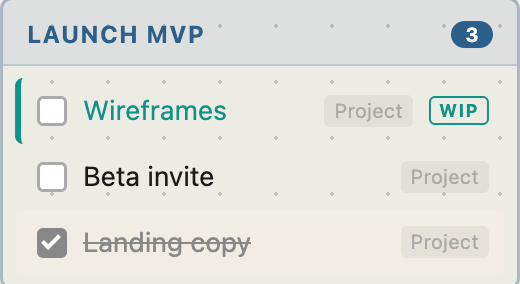
Clicking a task row in a smart-tile opens the task detail panel for that task, just like clicking it in its home tile.
Press G again, or press Escape, to dismiss the smart-tiles.
The ⊙ Goals button is dimmed and the G key does nothing if no goals exist yet. Create a goal first at
/goals.
Goal progress
Progress is shown as task counts — visible on the smart-tile and on the /goals page. There’s no separate progress bar or percentage view; the task list is the progress view.
The goal notes field (set on the /goals page) is a good place to capture what “done” looks like for that goal, or why it matters.